
User Guide#
RasCAL-2 is available for windows, linux, and macOS. Follow the instructions on the Installation page to install and start the software on your system. The following pages describe the user interface and features of RasCAL-2.
Check for RasCAL-2 Updates#
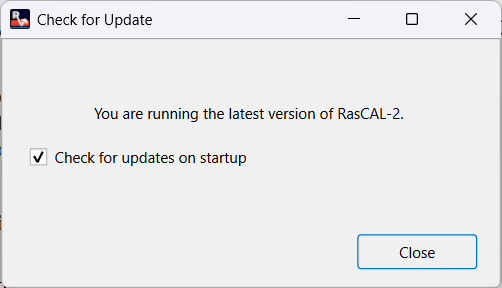
RasCAL-2 automatically checks for updates when the software is opened. You can manually check for update by clicking Help > Check for Update in the main menu
After an update check, the software will notify the user if a new release is available and provide a hyperlink to download the installer for the new version.
Note
You can also stop the automatic update checks by unchecking the Check for updates on startup checkbox.
Report Issues#
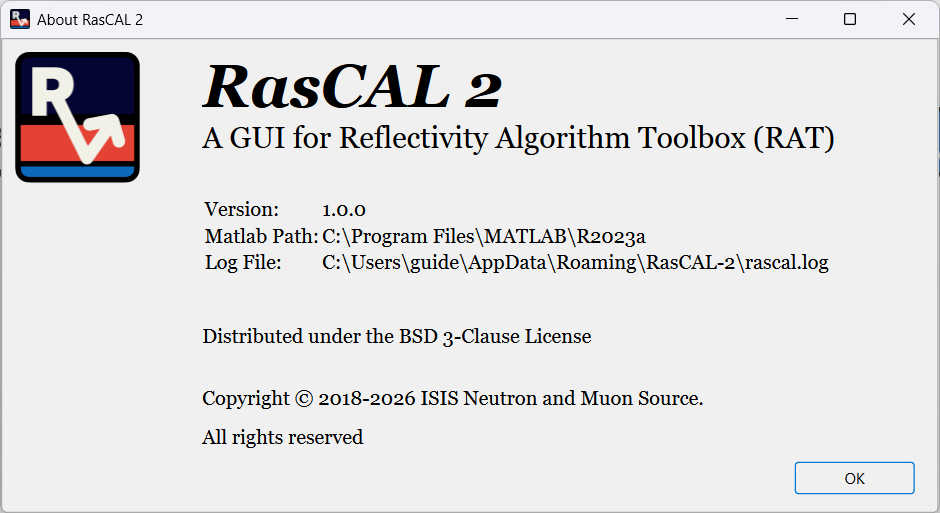
When reporting a bug or crash, it is important to report the version of RasCAL-2 and provide the software logs so it is easier to replicate and fix the issue. These information are present in the about dialog which can be opened by clicking Help > About in the main menu.
Exiting RasCAL-2#
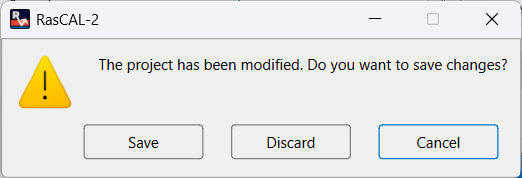
RasCAL-2 can be closed by clicking the File > Exit on the main menu in the software. If the current rasCAL-2 project has been modified or has unsaved results, a message will pop up to prompt saving the Project. Press the Save button to specify saving the project, the Discard button to specify not saving the project, or Cancel to abort the operation and return to the software.
Note
This dialog could look slightly different on linux or macOS.