
Backgrounds#
Backgrounds describe how background noise should be accounted for in the experiment. A background can be defined in the backgrounds tab then referenced in a contrast. The backgrounds tab has 2 tables, the top table is a background parameters table which is meant to hold parameters that are referenced by the backgrounds table at the bottom.
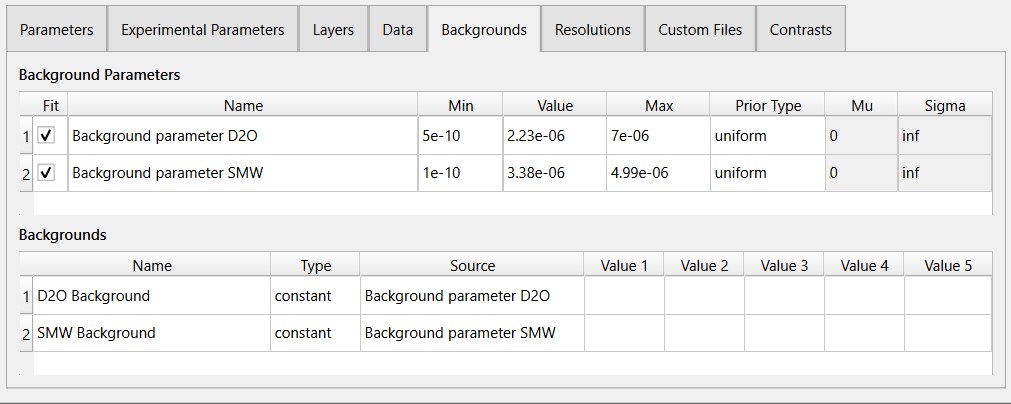
Backgrounds for an experiment can be described in RasCAL in the following ways:
As a constant backgrounds, which uses a background parameter.
As a data backgrounds, which uses an entry in data list and an optional background parameter which serves as an offset.
As a function backgrounds, which uses an entry in the custom files table and along with up to one to five optional background parameters which serves as arguments passed to the function to calculate the background.
Add and Remove Backgrounds#
To add a new background (in edit mode):
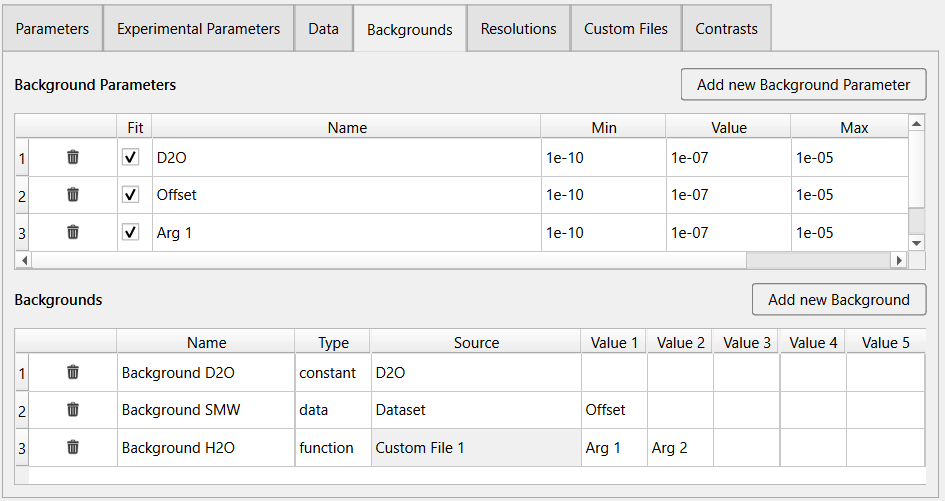
Constant Background
Click the Add new Background Parameter button at the top right of the tab. A new row entry will be added to the background parameters table with an auto generated name. Modify the new entry by double clicking the cells and updating their values.
Click the Add new Background button. A new row entry will be added to the backgrounds table with an auto generated name.
Change Type to constant and Source to the parameter added in step 1.
Data Background
Add a new dataset that contains the background information Data
If a data offset is required, click the Add new Background Parameter button. A new row entry will be added to the background parameters table with an auto generated name. Modify the new entry by double clicking the cells and updating their values.
Click the Add new Background button. A new row entry will be added to the backgrounds table with an auto generated name.
Change Type to data, Source to the dataset added in step 1, and Value 1 to the background parameter added for the data offset if any.
Function Background
Add a new custom file that describes the background Custom Files
If function arguments are required, click the Add new Background Parameter button. A new row entry will be added to the background parameters table with an auto generated name. Modify the new entry by double clicking the cells and updating their values. Repeat for each function argument up to 5 arguments are supported.
Click the Add new Background button. A new row entry will be added to the backgrounds table with an auto generated name.
Change Type to function, Source to the custom file added in step 1, and Value 1 to Value 5 to the background parameters added for the function arguments if any.
To remove a background file (in edit mode), simply click the  button on the specific row you want to remove.
Also remember to delete the related background parameters if they are unused.
button on the specific row you want to remove.
Also remember to delete the related background parameters if they are unused.