
Experimental Parameters#
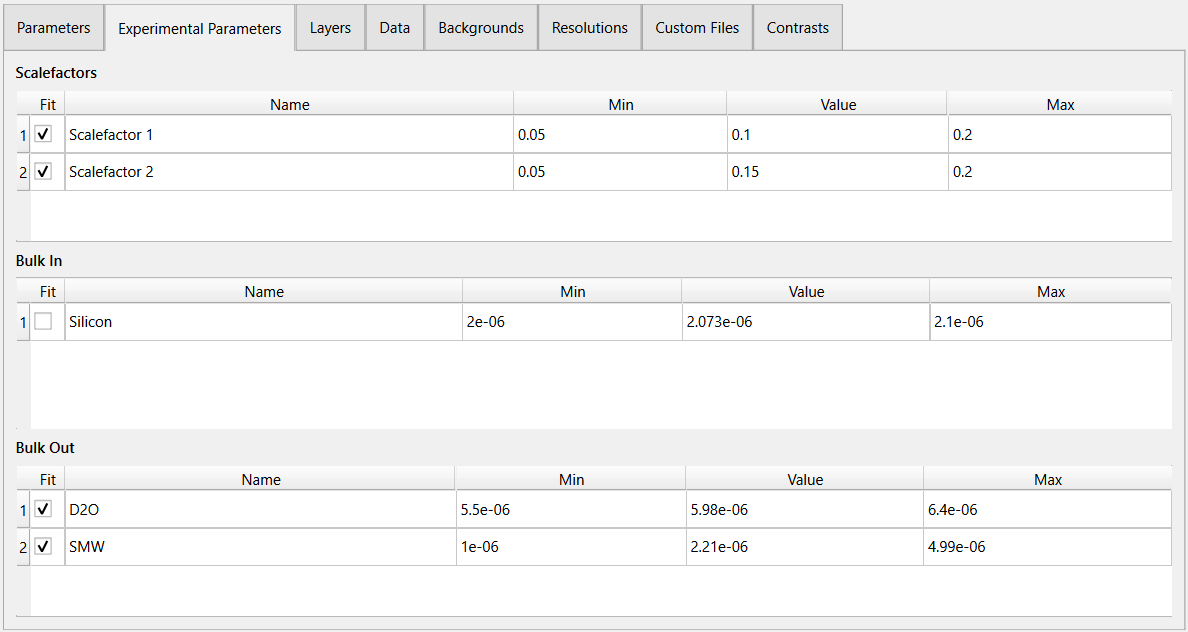
The experimental parameters tab contains 3 parameter tables for the Bulk Ins, Bulk Outs, and Scalefactors. These tables have the columns and behaviours as the one described in the Parameters tab.
Add and Remove Scalefactors#
To add a new scalefactor (in edit mode):

Click the Add new Scalefactor button above the scalefactor table.
A new row entry will be added to the bottom of the table with an auto generated name. Modify the new entry by double clicking the cells and updating their values.
To remove a scalefactor (in edit mode), simply click the  button on the specific row you want to remove.
Add and Remove Bulk Ins#
To add a new bulk in (in edit mode):

Click the Add new Bulk In button above the Bulk In table.
A new row entry will be added to the table with an auto generated name. Modify the new entry by double clicking the cells and updating their values.
To remove a bulk in (in edit mode), simply click the button on the specific row you want to remove.
Add and Remove Bulk Outs#
To add a new bulk out (in edit mode):

Click the Add new Bulk Out button above the Bulk Out table.
A new row entry will be added to the table with an auto generated name. Modify the new entry by double clicking the cells and updating their values.
To remove a bulk out (in edit mode), simply click the button on the specific row you want to remove.