
Layers#
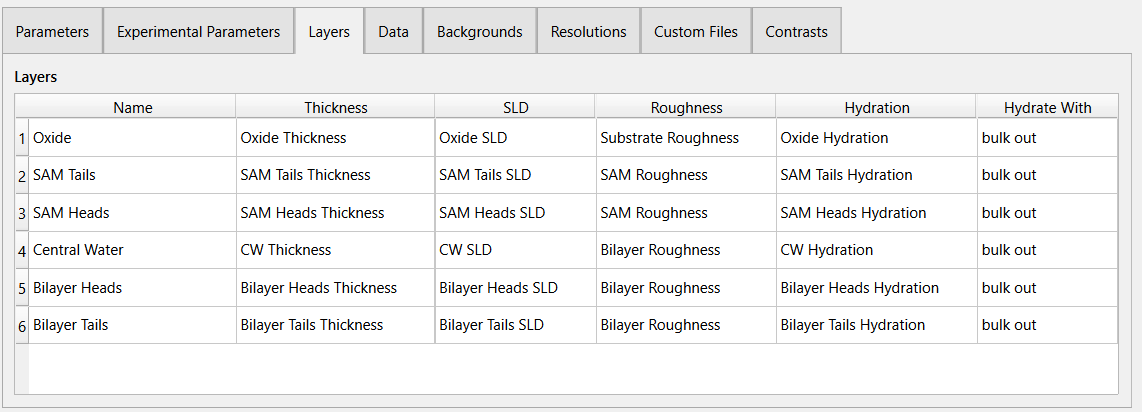
Layers give physical information for each layer in a slab model. A layer can be defined in the layers tab then referenced in a contrast. The layers tab will only be visible when the Model Type is set to standard layers. The layers are displayed in a table where each row is a different layer entry, each layer has the following properties:
Name: The unique name of the layer.
Thickness: The parameter describing the thickness of the layer.
SLD: The parameter describing the real (scattering) term for the scattering length density of this layer.
SLD Imaginary: The parameter describing the imaginary (absorption) term for the scattering length density of this layer. Only available when the Absorption is checked in the project window.
Roughness: The parameter describing the roughness of this layer.
Hydration: The parameter describing the percent hydration for the layer.
Hydrate With: Whether the layer is hydrated with the “bulk in” or “bulk out”.
Add and Remove Layers#
To add a new layer (in edit mode):
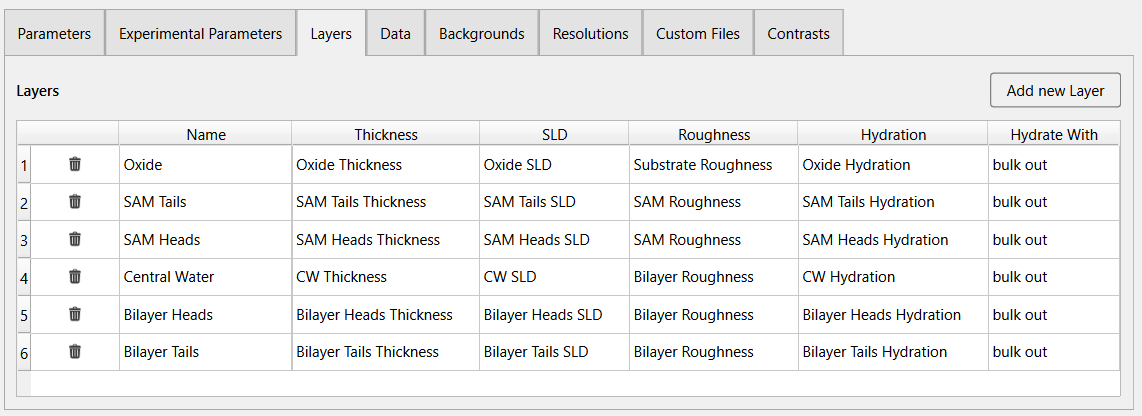
Click the Add new Layer button at the top right of the tab.
A new row entry will be added to the bottom of the table with an auto generated name. Modify the new entry by double clicking the cells and updating their values.
To remove a layer (in edit mode), simply click the  button on the specific row you want to remove.