
Contrasts#
After defining the various aspects of a project, i.e. backgrounds, data and so on, these can be grouped together into contrasts that describe the experimental setup. The number of desired contrast will depend on the specific experiment.
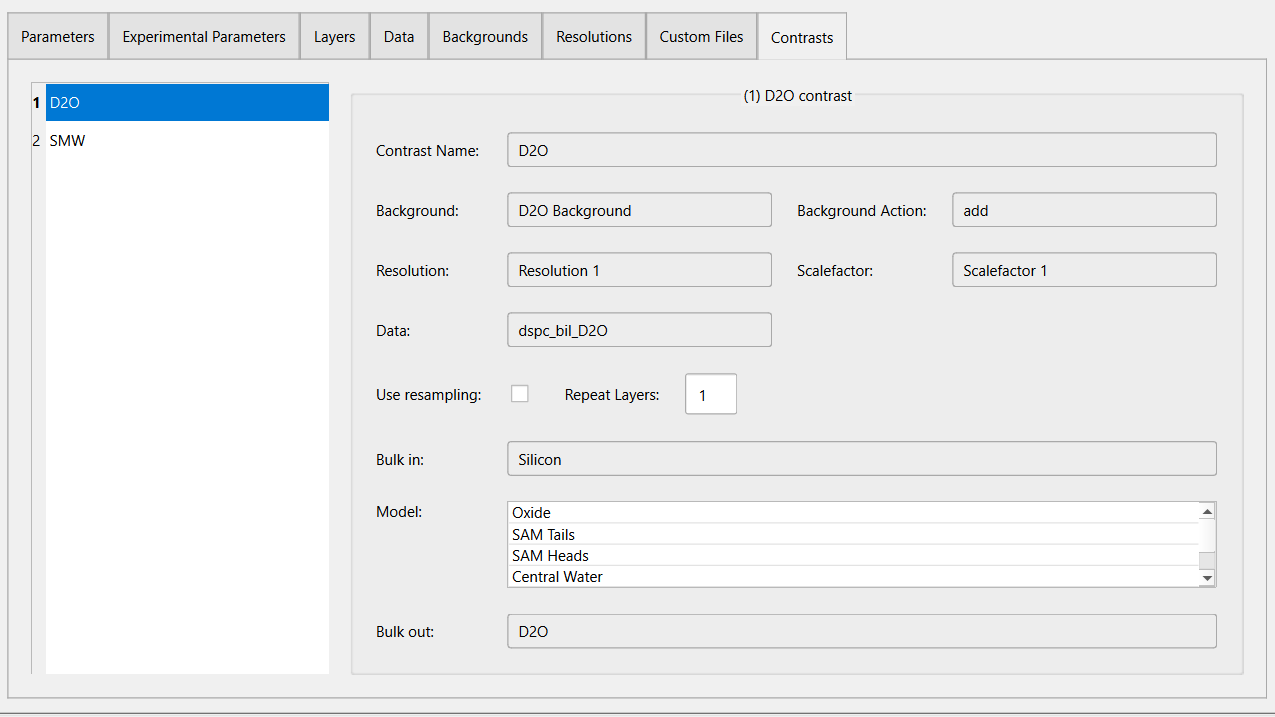
The contrasts in the project will show up the in the list on the left of the tab. This list shows the contrast number which is important to known for custom functions.
Each contrast has the following properties:
Name: The unique name of the contrast.
Background: The name of the background for the contrast.
Background Action: Whether the background should be added to the simulation (‘add’) or subtracted from the data (‘subtract’).
Resolution: The name of the instrument resolution for the contrast.
Scalefactor: The name of the scalefactor for the contrast.
Data: The name of the dataset for the contrast.
Bulk In: The name of the bulk-in for the contrast.
Bulk Out: The name of the bulk-in for the contrast.
Model: For custom models, this should be a single custom file name for the contrast.

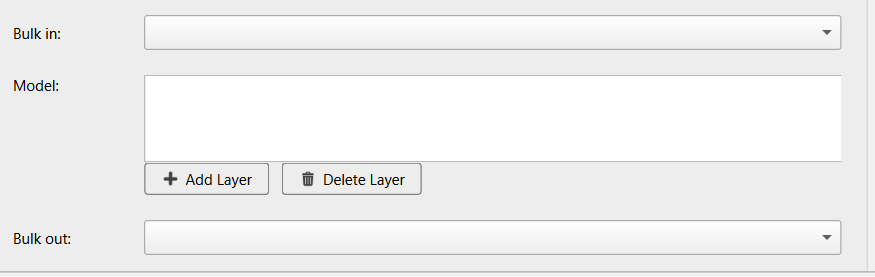
For non-domain, standard layers models, this should be a list of layer names that make up the slab model for the contrast.
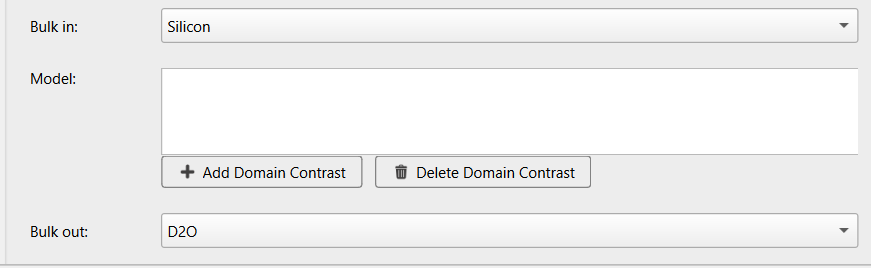
For domain, standard layers models, this should be a list of domain contrast names for the contrast
There are optional properties depending on the calculation and model type:
Domain Ratio: The name of the domain ratio parameter. this is only supported when calculation is domians.
Repeat Layers: The number of times the layers should be repeated, this is only supported when model type is standard layers.
Use resampling: whether adaptive resampling should be used for interface microslicing, this is only supported for model type is standard layers or is custom layers.
Add and Remove Contrasts#
To add a new contrast, in edit mode:
Click the
 button at the top of the contrast list.
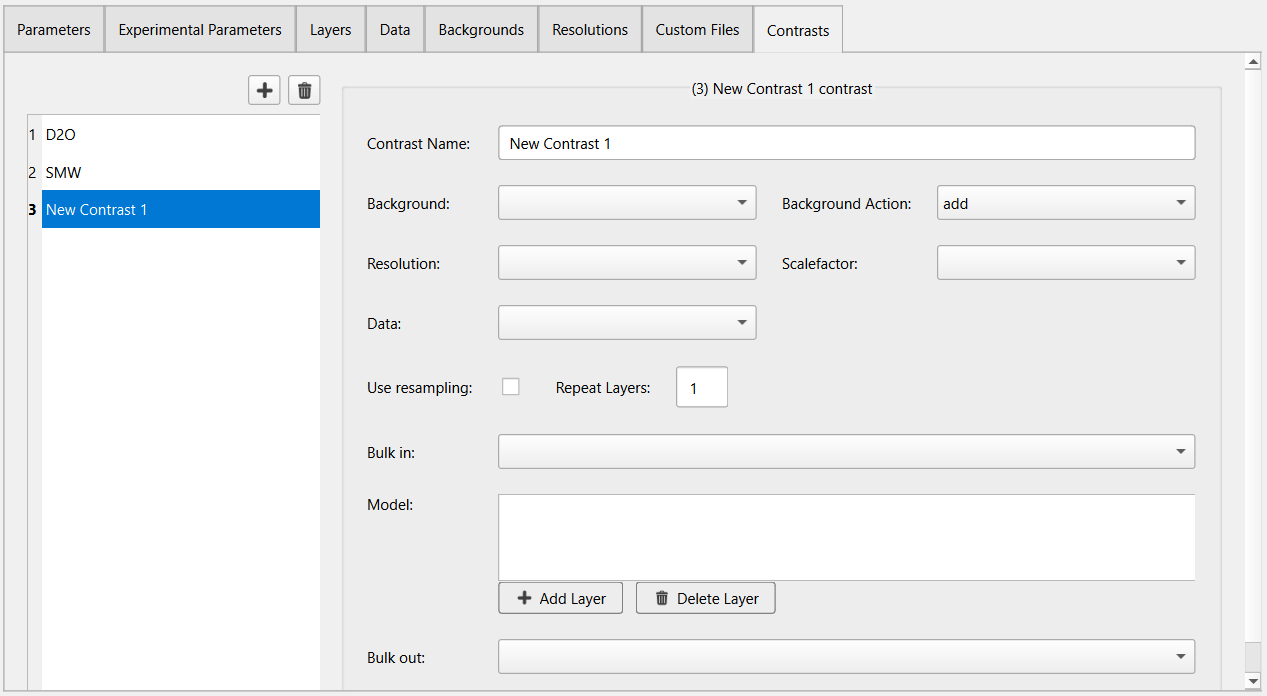
A new contrast would be created with an autogenerated name. Modify the name by typing in the text box, the other entries can be set by selecting the desired values from their associated dropdowns. For standard layers model, click the Add Layer (or Add Domain Contrast) then select the desired values from the dropdown in the model list.
Attention
For a domain standard layers project, there can only be 2 domain contrast in the model.
To remove a contrast, in edit mode:
Select a contrast to remove in the data list.
Click the
 button.
The selected contrast will be removed from contrast list.