
Settings#
The settings for RasCAL-2 can be configured by clicking  in the toolbar or clicking File > Settings in the
main menu. The settings dialog has 3 tabs:
in the toolbar or clicking File > Settings in the
main menu. The settings dialog has 3 tabs:
General:
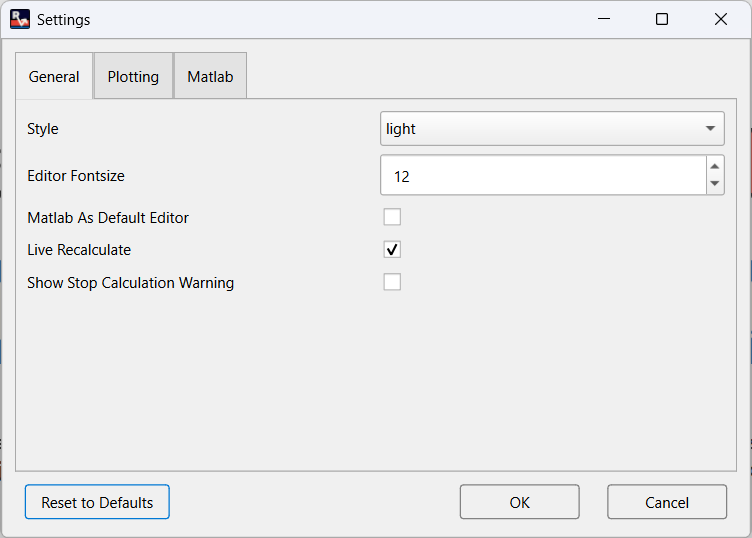
Style: This sets the active theme of RasCAL-2. The software can use the default system theme, a light or a dark theme.
Editor Fontsize: This is the font size of the internal custom file editor.
Matlab As Default Editor: This indicates that should if Matlab should be used to open both Python and Matlab custom files.
Live Recalculate: This indicates the results should be recalculated and plotted whenever the user changes values outside edit mode. This can be disabled if running the calculation is expensive.
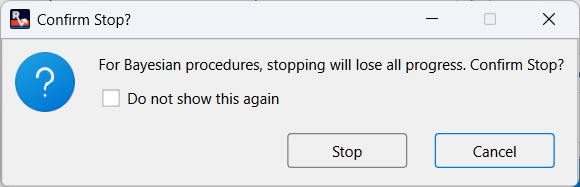
Show Stop Calculation Warning: This indicates a warning should be shown to user when stopping a run will lead to result being lost.
Plotting: Setting related to plots.
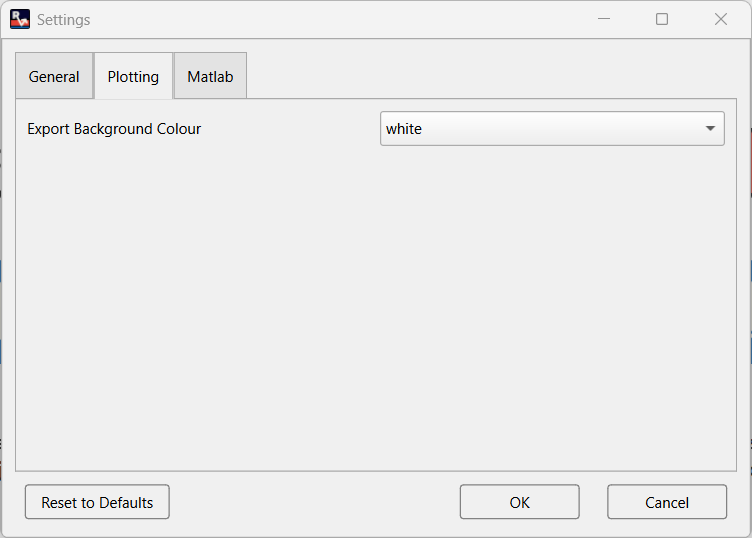
Export Background Colour: indicates if exported plot background should be white or transparent.
Matlab: Setting related to running Matlab custom files.
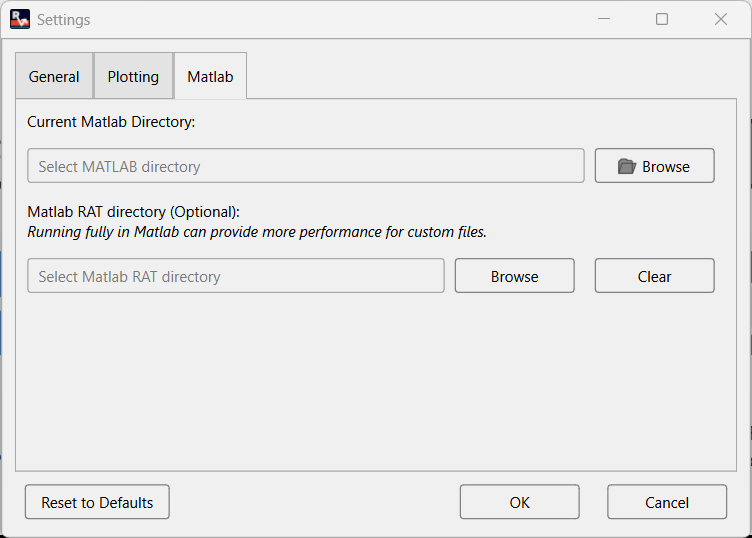
Current Matlab Directory: This tells RasCAL-2 where the Matlab installation for custom files is located. On Windows and Linux, this should be the folder path e.g C:\Program Files\MATLAB\R2023a while on MacOS should be the app e.g /Applications/MATLAB_R2023b.app. The minimum supported MATLAB is 2023b.
Matlab RAT directory: This tells RasCAL-2 to use the provided Matlab RAT files when running a Matlab custom file. This could provide improved performance by avoiding switching in and out of Matlab code. Download and use the latest version of RAT, set this to the path of the RAT folder e.g C:\RAT.