
Project Structure#
A project in RasCAL-2 is a folder which contains the human-readable json files and other optional files such as custom files required to run a calculation. A folder based project structure means projects can typically be shared by copying the project folder.
Warning
If you plan to share a project folder with custom files and/or run it on different machines, ensure that RasCAL-2 is allowed to copy the custom files if it was outside the project folder (This is the default behaviour), otherwise it will use an absolute path which could make the project fail to run.
The primary files in a project folder are:
A project.json containing the model definition for the project.
A controls.json containing the control procedure and configuration.
The project folder could also have:
An optional results.json containing the result of the last run.
Optional Custom files if RasCAL was allowed to copy them.
Create New Project#
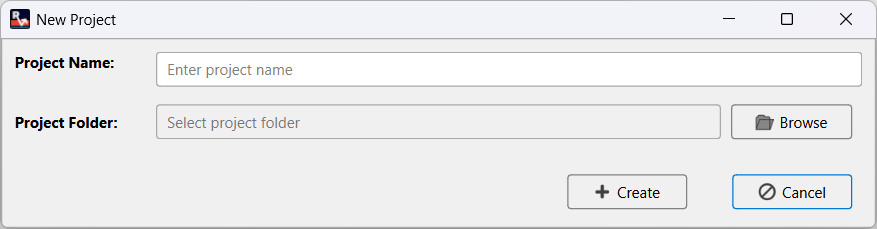
In the startup screen, click the New Project button to open the new project dialog. The new project dialog can also be opened using the shortcut Ctrl + N or by clicking File > New Project in the main menu.
Tip
You can also click the  icon on the toolbar.
To create a new project:
Type in the name of the project
Click the Browse button and navigate to the folder which will hold the project. This folder can have files in it but must not contain a project already.
Click the Create button
The new project dialog will close as soon as the project is created.
Load Existing Project#
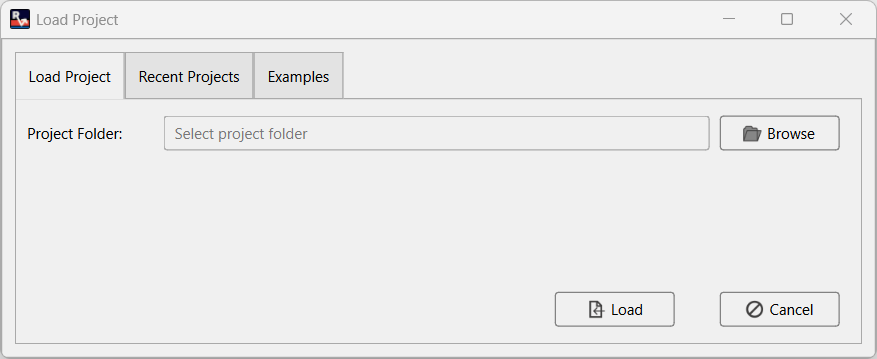
In the startup screen, click the Import Existing Project button to open the load project dialog. The load project dialog can also be opened using the shortcut Ctrl + O or by clicking File > Open Project in the main menu.
Tip
You can also click the  icon on the toolbar.
To open an existing project:
Click the Browse button, navigate to the project folder.
Click the Load button
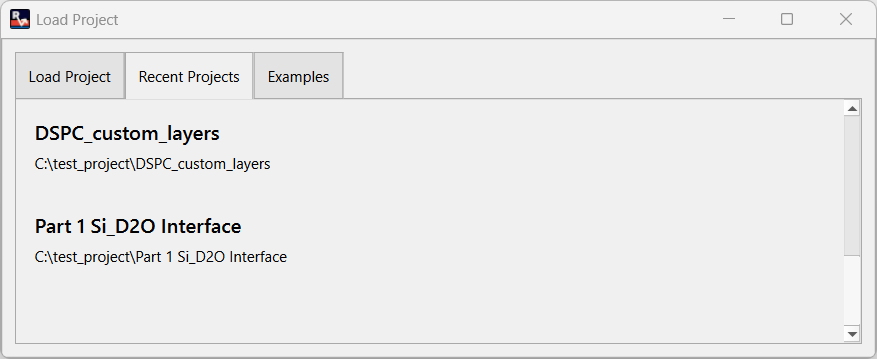
To load a recently opened project (last 10), click the Recent Projects tab in the load project dialog, then select the desired project from the list by clicking on the entry.
To load an example project, click the Examples tab in the load project dialog, then select the desired example project from the list by clicking on the entry.
Load RasCAL-1 Project#
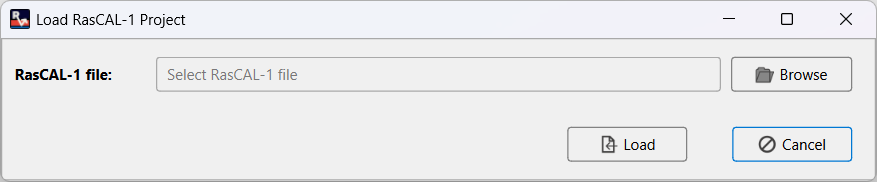
In the startup screen, click the Import RasCAL-1 Project button to open the load RasCAL-1 project dialog. The new project dialog can also be opened by clicking File > Open RasCAL-1 Project in the main menu.
To load a RasCAL-1 project:
Click the Browse button, navigate to the folder with the RasCAL-1 project, and select the *.mat file.
Click the Load button
The load RasCAL-1 project dialog will close as soon as the project is created.
Note
MATLAB is required to run RasCAL-1 custom projects so ensure it is setup properly. But RasCAL-1 standard layers projects can be loaded and run without MATLAB.
Save a Project#
To save a project, press Ctrl + S or click File > Save in the main menu.
Tip
You can also click the  icon on the toolbar.
To save to a different folder, click File > Save To Folder… and navigate to the new folder in the file dialog.
Export as Script#
The model definition of a project can be exported as a python script which can modified for further analysis. To export as a script, click File > Export as Script…, navigate to the desired save location in the file dialog, enter a name for the file and press the Save button. The exported script will require the ratapi python package to run so install ratapi in your python environment.
Export Fits#
The resulting data from a fit can be exported for further analysis outside RasCAL-2 or for custom plotting. To export fits, click File > Export Fits…, navigate to the desired save location in the file dialog, enter a name for the file and press the Save button. All the data will be exported to zip which contains several comma separated value (*.csv) files, the name of each file will indicate the name of the data, the contrast number and domain number (if applicable) e.g the file called sldProfiles_contrast_1_domain_2.csv is the sldProfiles data for contrast 1 and domain 2 while backgrounds_contrast_2.csv is the background for contrast 2 and all or no specific domain.