
Parameters#
The parameters outline the material parameters of our model, such as thickness, SLD or roughness.
The general parameters can be defined in the Parameters tab then referenced in layers or custom functions. Specific parameters for Bulk ins, Bulk outs, and the Scalefactors can be set in the Experimental Parameters tab. The parameters are displayed in a table where each row is a different parameter entry, each parameter has the following properties:
Name: The name of the parameter.
Min: The minimum value that the parameter could take when fitted.
Value: The value of the parameter.
Max: The maximum value that the parameter could take when fitted.
Fit: Whether the parameter should be fitted in a calculation.
PriorType: Whether the prior likelihood is assumed to be ‘uniform’, ‘gaussian’, or ‘jeffreys’.
Mu: If the prior type is Gaussian, the mean of the Gaussian function for the prior likelihood.
Sigma: If the prior type is Gaussian, the standard deviation of the Gaussian function for the prior likelihood.
The parameter table will show the Mu, Sigma and Prior Type of the parameters only when a Bayesian procedure i.e. dream or ns is selected in the controls window.
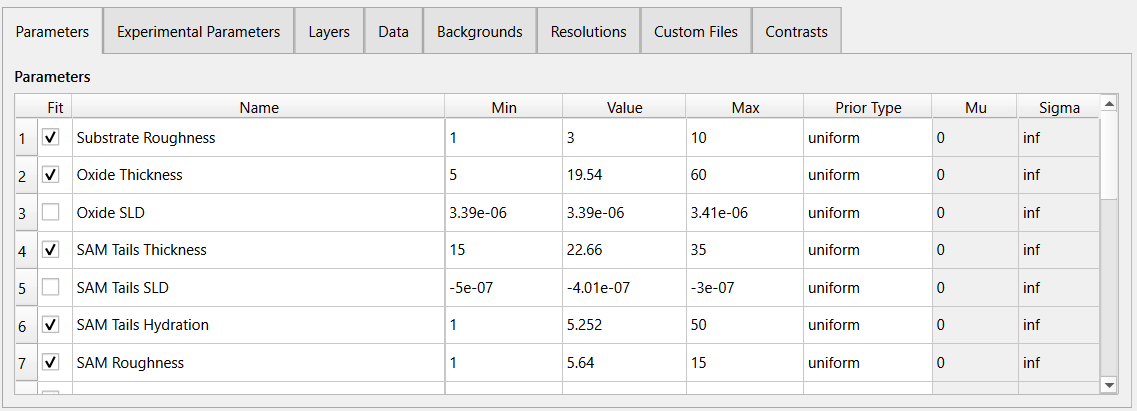
The first entry in the parameter table, “Substrate Roughness” is a protected parameter which defines the Fresnel roughness. It cannot be renamed or deleted form the table however its value and ranges can be set as needed
Warning
The parameter table shows a row number on the left of each entry. In Python custom functions, this number is not the same as the parameter index i.e. params[0] will be the substrate roughness instead of params[1] (assuming params is the name of the parameters argument), so when index subtract 1 from the row number to get the correct parameter.
Add and Remove Parameters#
To add a new parameter (in edit mode):
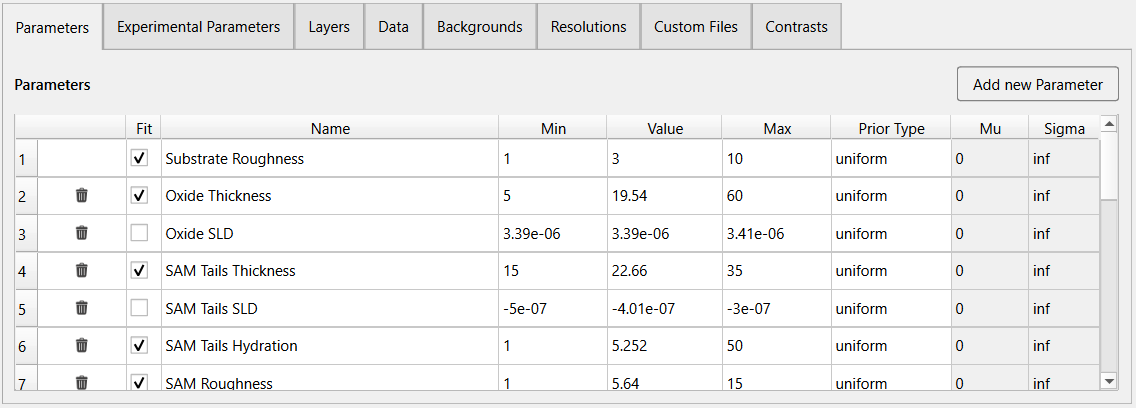
Click the Add new Parameter button above the parameter table.
A new row entry will be added to the bottom of the table with an auto generated name. Modify the new entry by double clicking the cells and updating their values.
To add a parameter after a specific row, select the row by clicking on the row number, the row should be highlighted, then follow the steps above and the parameter should be added after the selected row.
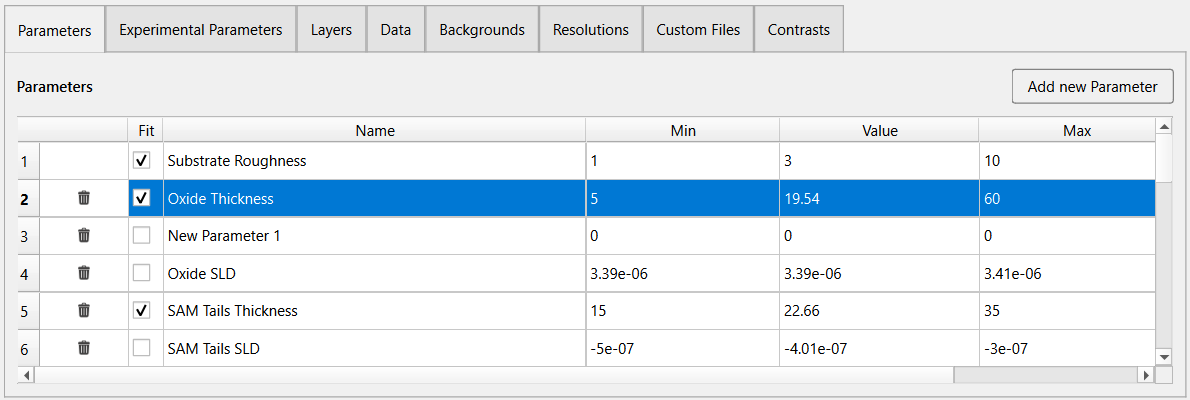
To remove a parameter (in edit mode), simply click the  button on the specific row you want to remove.