
User Interface#
Starting the RasCAL-2 software would show a splash screen while the software is loading. When loading is complete, the startup screen will be shown.
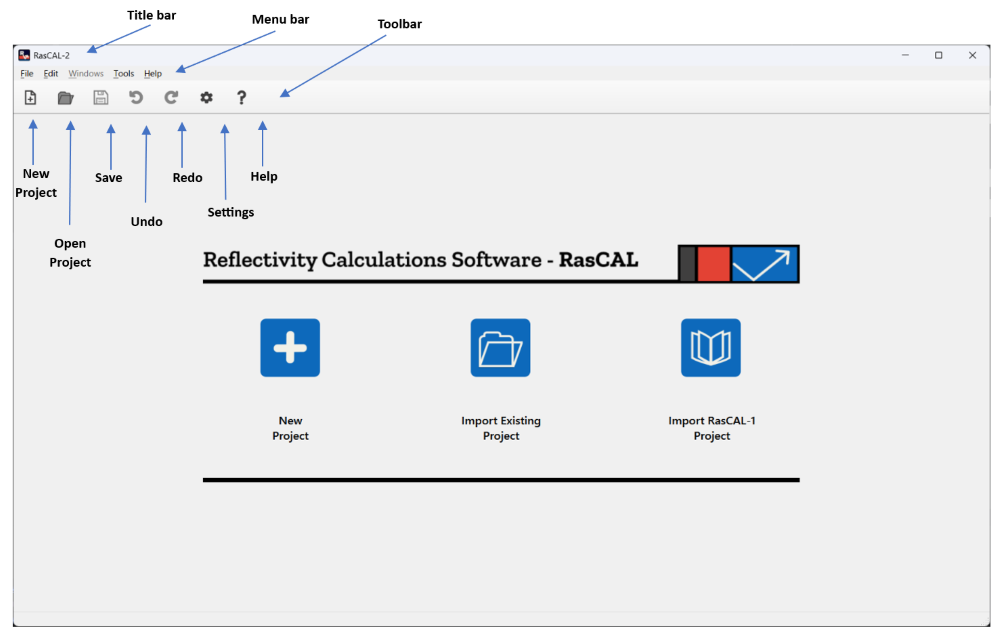
At the top of the startup screen is the title bar which will show the name of the software and the project name and path if a project is opened. Below the title bar is the menu bar and toolbar, which provides access to a number of operations. At the center of the screen are options for creating or loading a RasCAL project.
Note
Some operating systems can change the location and look of title and menu bar.
Window Management#
After creating or loading a project, the interface will display 4 sub-windows arranged by default in 2x2 irregular grid. The sub-windows are
Plot window (top left)
Project window (top right)
Terminal window (bottom left)
Controls window (bottom right)
These sub-windows can be rearranged by clicking on the title bar of the sub-window and dragging the sub-window. The sub-window can also be resized, minimised and maximized similar to the main window. It can be useful to make a sub-window bigger or smaller to suit a workflow, after which the arrangement can be saved by clicking Windows > Save Current Window Positions in the menu, this will make that arrangement the default and RasCAL will use that saved arrangement whenever the software is started.
If you move a sub-window and want to revert back to you saved arrangement, click Windows > Reset to Default in the menu. If you want to revert to the original arrangement, click Windows > Tile Windows then click Windows > Save Current Window Positions in the menu to save the arrangement.
Note
The sub-windows cannot be dragged outside the boundary of the main software window but only within the centre area of the main window.