
Custom Files#
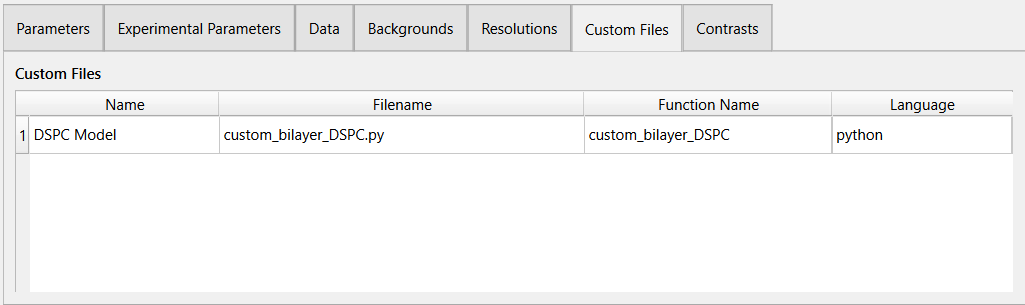
Custom files are essential for custom model projects and function background. A custom file can be defined in the custom files tab then referenced in a contrast or background. The custom files are displayed in a table where each row is a different custom file entry, each custom file has the following properties:
Name: The unique name of the custom file.
Filename: The path of the custom file.
Function Name: The name of the function to call in the custom file.
Language: The language of the custom file is written in. These are supported:
python (*.py)
matlab (*.m)
cpp dynamic library (*.dll, *.so, *.dylib)
Add and Remove Custom Files#
To add a new custom file (in edit mode):
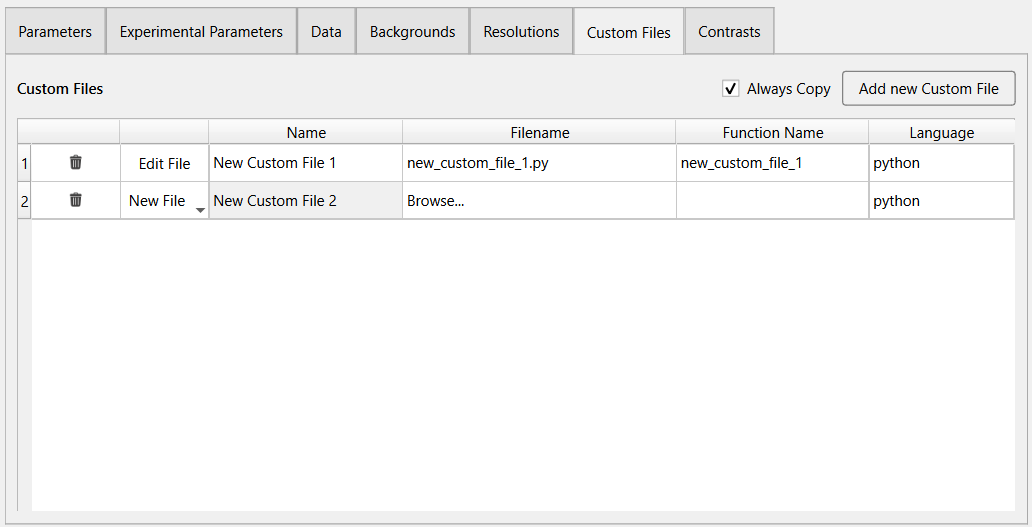
Click the Add new Custom File button at the top right of the tab.
A new row entry will be added to the table with an auto generated name. The name can be changed by double clicking the cell.
If the file already exists, double click Browse… in the new row and select a supported file from the file dialog. RasCAL will try to detect the function name and language but these can always be changed by double clicking the cell and updating the value.
If the file is not in the project directory, it will be copied into the directory if Always Copy is checked. If Always Copy is unchecked, RasCAL will attempt to run the file without copying. It is recommended to always allow RasCAL copy the custom file especially for MATLAB custom files.
Warning
MATLAB custom files can fail to run or run an incorrect version if it is not copied to the project directory.
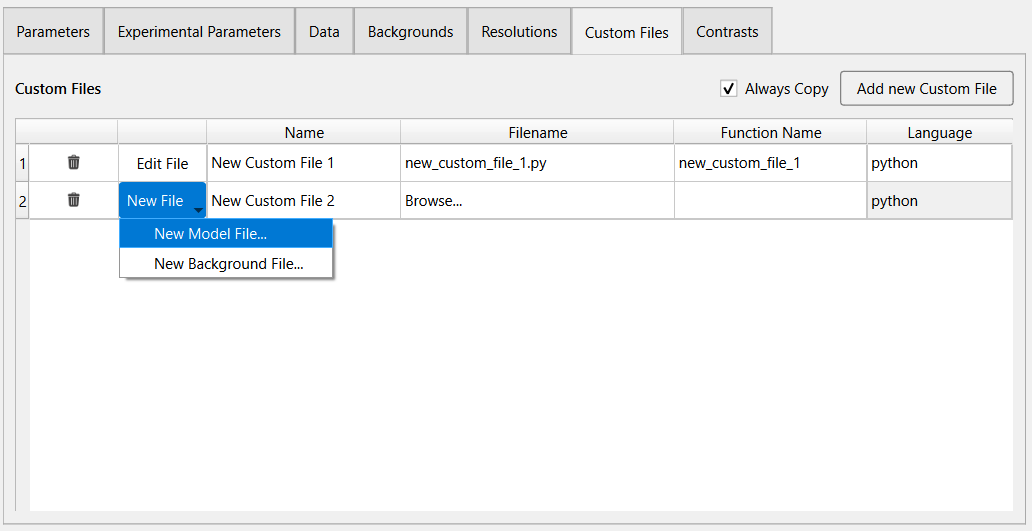
If the file does not exist, click the New File menu and select New Model File or New Back to create a new custom model or background function file respectively in the project directory. This file will created for the selected language and opened in the editor.
To remove a custom file (in edit mode), simply click the  button on the specific row you want to remove.
Edit a Custom File#
It might be necessary to modify a custom file from within RasCAL. An in-built editor is available to modify python and matlab custom files. In edit mode, a file can be opened in the editor by clicking the Edit File button then changes can be made to the file, click the Save button to save changes.
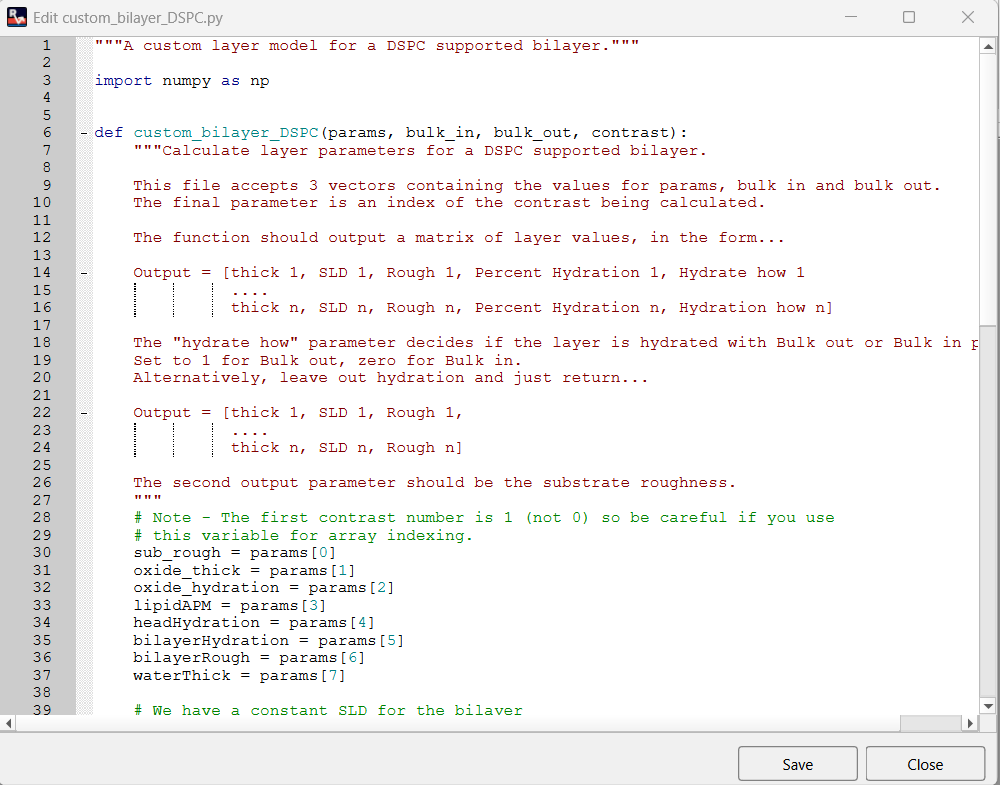
If you prefer to edit in the Matlab editor, activate the Matlab as Default Editor in the General settings, then clicking the Edit File would attempt to open the file in Matlab if it is connected properly to RasCAL, otherwise it will fallback to the in-built editor.